


The following information will guide you on downloading, logging into, and using the Square App for selling gate passes. If at any point you have questions please reach out to Jennifer, TJ or Frank.
Square - How to Steps
Follow the steps below to download and log into the Square App. Keep your device locked when not selling tickets. Try to stay off social media and other apps that will drain your battery throughout the day. If you are in need of a battery pack at any point ask your site director for a battery pack to recharge your phone.
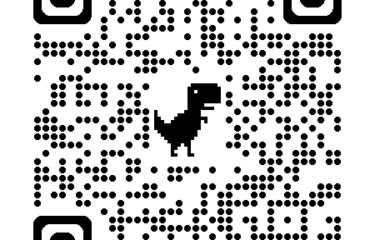
Download App for Iphone
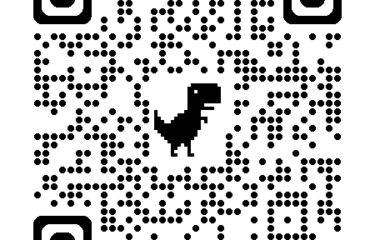
Download App for Android

Open Square App on your device

Select sign in using a device code

Use the code below next to the gate you are working.
**NOTE** Codes can only be used to sign in one device.
Oak Villa
Gate Staff #1: QSP3B4ND2FS7
Gate Staff #2: 1XPB3ZWFQ2D6
Central:
Gate Staff #1: 2M3K7MZJENGN
Gate Staff #2: 8M77K032TX1N
Gate Staff #3: NP2YBZNC36Z5
Gate Staff #4: Q5KAWBEW0DPA
Merchandise: 35QNKWYRTC0F
Tinsley:
Gate Staff #1: F8BJ5GGFKB0V
Gate Staff #2: RZN1ZC3GTCC6

Connect to your Square Reader
Click More - bottom right hand corner
Select Settings
Select Hardware
Select Square Readers
Select Connect a Reader
Hold down the small button on top of the square reader until the lights turn white/yellow and begin to flash.
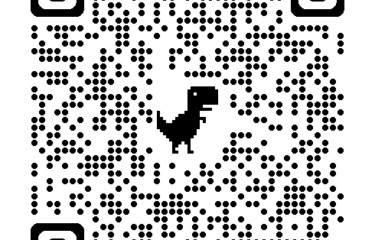
Scan code to watch video on logging in and connecting to a Square Reader
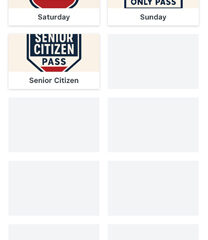
To begin selling select Check Out on bottom left of screen
Select Favorites
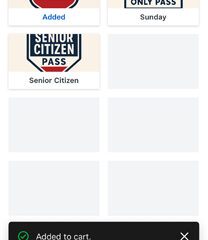
Add items customer is wanting to purchase

Select Review sale
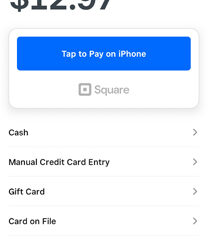
Select Charge to process the payment
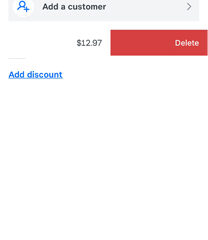
If you need to remove the items, drag item to the left to remove
